Claim and Unclaim Devices
Use the following procedures to claim and unclaim devices from the cloud.
Claim a Single Device
To claim a single device:
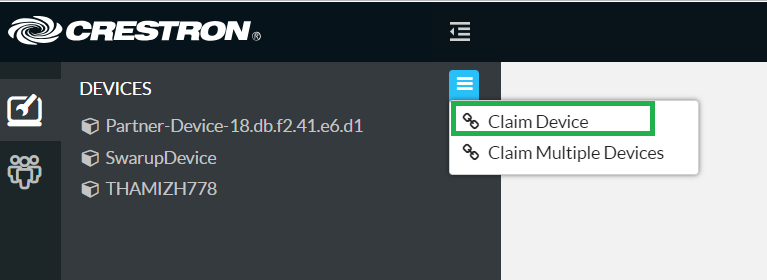
- Select the devices icon at the top left of the navigation menu to display the DEVICES menu.
- Select the DEVICES context menu button.
- Select Claim Device from the drop-down menu.
- Enter the device MAC address and serial number when prompted.
- Select Claim. The device is added to the DEVICES list if it was claimed successfully.
Claim Device Selection
Claim Multiple Device
To claim multiple device:
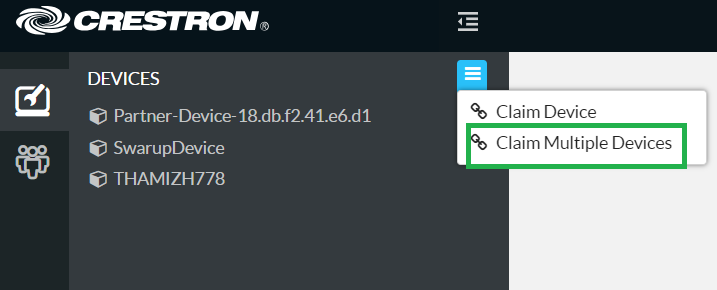
- Select the devices icon at the top left of the navigation menu to display the DEVICES menu.
- Select the DEVICES context menu button.
- Select Claim Multiple Devices from the drop-down menu.
- Record the MAC address and serial number of each device as a comma delimited CSV file.
- Example: 00.11.22.33.44.55,12345678
- An optional third column may be added to the CSV file with custom device names. After being claimed, the device will take the custom name from the CSV file instead of its default name. For example, if adding a custom device name to the example above, the formatting would be 00.11.22.33.44.55,12345678,[custom device name]
- Select the CSV file created in step 4 when prompted.
- Select Claim. The devices are added to the DEVICES list if they were claimed successfully.
Claim Multiple Devices Selection
Unclaim a Device
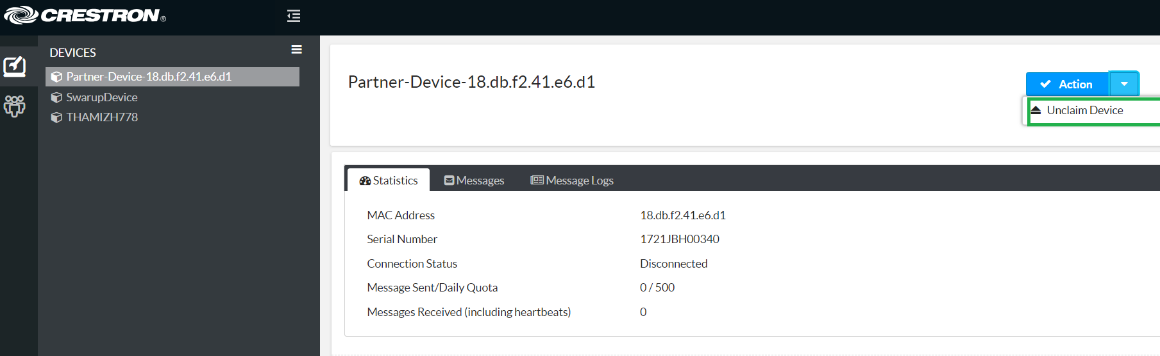
To unclaim a device:
- Select the device to unclaim from the DEVICES menu.
- Select the Action menu at the top right of the device settings pane.
- Select Unclaim Device from the drop-down menu.
- Select Yes in the confirmation dialog that opens to unclaim the device. The unclaimed device is removed from the DEVICES list.
Unclaim Device Selection