Manage Users
Use the following procedures to add, edit, and delete users from the partner portal.
Add a User
To add a new user to the partner portal:
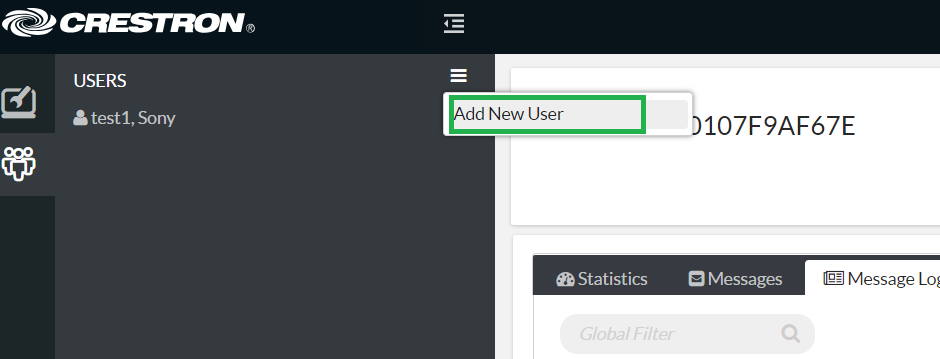
- Select the users icon at the top left of the navigation menu to display the USERS menu.
- Select the USERS context menu button.
- Select Add New User from the dropdown menu.
- Enter the required user information when prompted.
- Select Add. The user is added to the USERS list.
Add New User Selection
Edit User Information
To edit information for a user:
- Select a device from the USERS list.
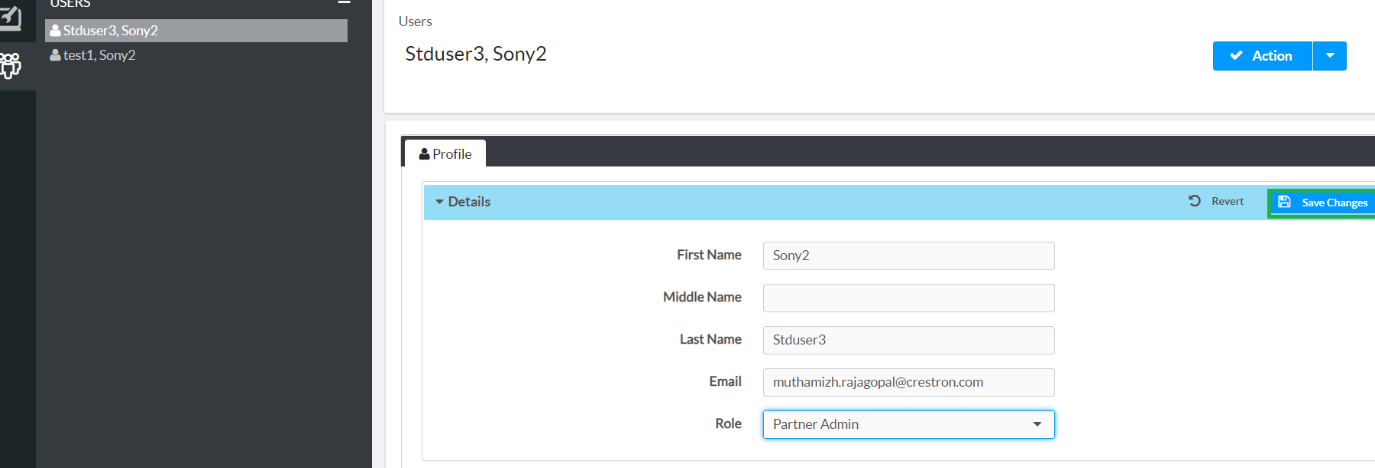
- Select the Profile tab in the user settings pane.
- Make any changes to the provided user fields, and then select Save Changes.
Profile Tab
Delete a User
To delete a user from the partner portal:
- Select the user to delete from the USERS menu.
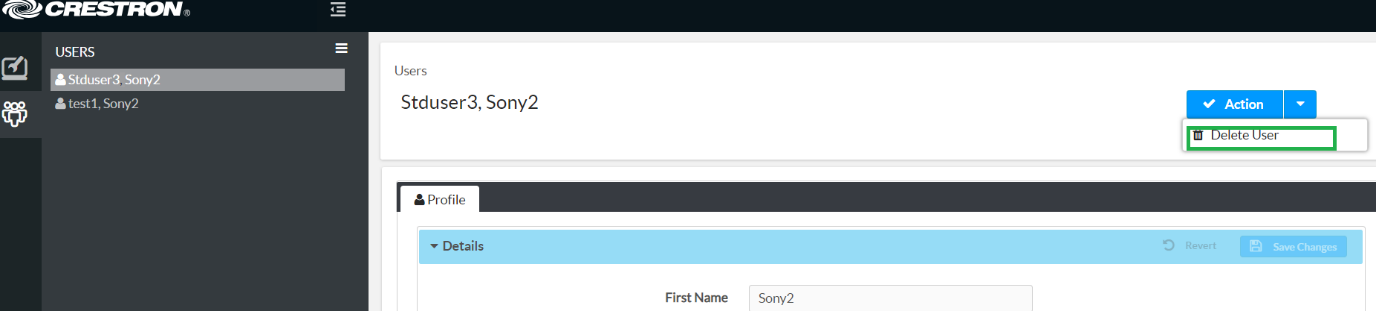
- Select the Action menu at the top right of the user settings pane.
- Select Delete User from the dropdown menu.
- Select Yes in the confirmation dialog that opens to delete the user. The user is removed from the USERS list.
Delete User Selection